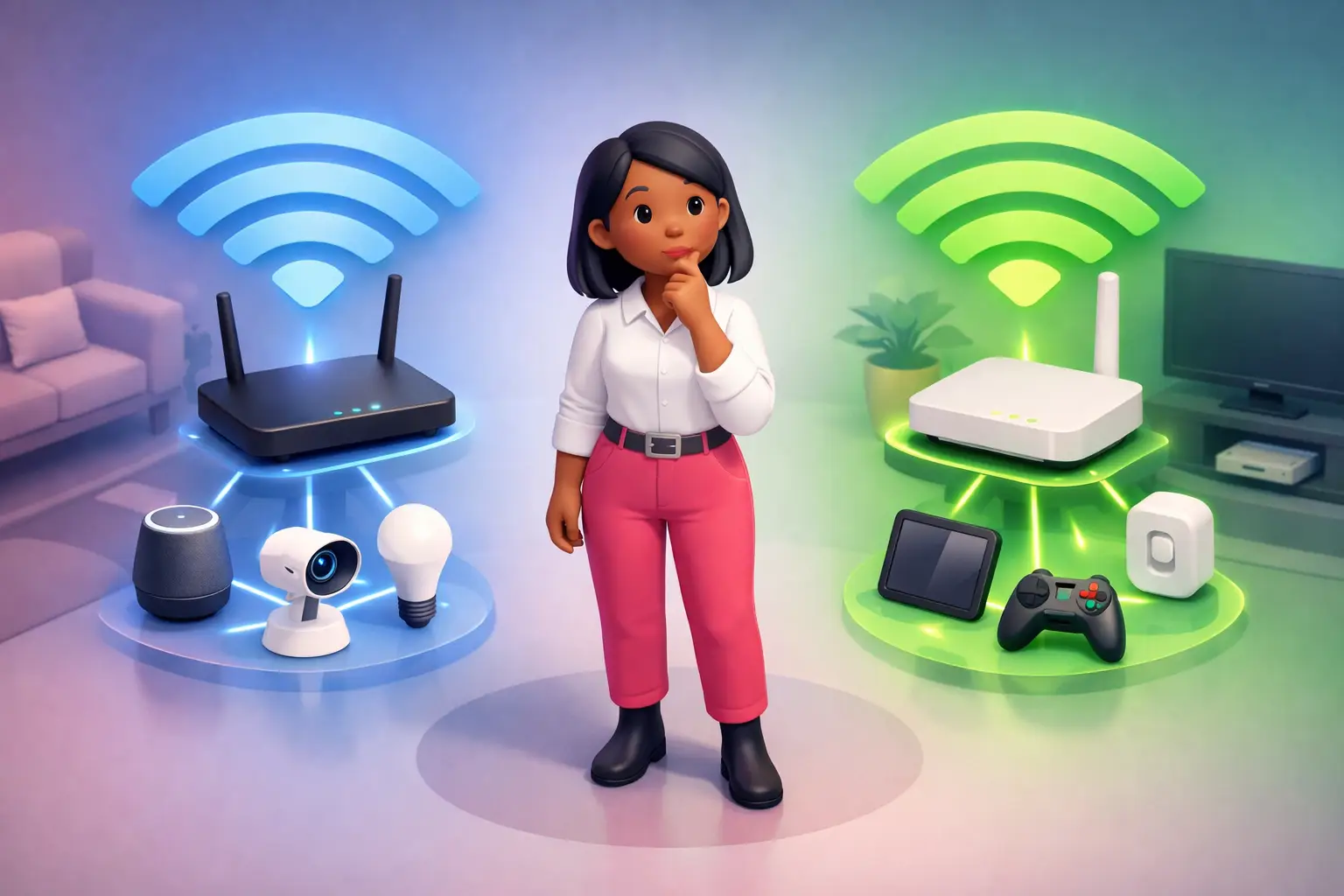
5GHz vs 2.4GHz Wi-Fi: Which Band Should Each Device Use?
Quick answer: use 5GHz for devices that need speed and sit near the router, such as phones, laptops, smart TVs and games consoles. Use 2.4GHz for devices that are far away, behind walls, or low-bandwidth, such as smart plugs, cameras and older gadgets. If your router has band steering, it usually chooses for you, but you can split the bands to override it.
Your broadband deal gets all the attention, but here is a fact that reframes it: around 90% of fixed broadband traffic reaches your devices over Wi-Fi rather than a cable (Dynamic Spectrum Alliance, cited in Ofcom, 2025). For most of your devices, in other words, your Wi-Fi is your internet. And one of the simplest, cheapest ways to improve it is to get each device onto the right band. No new kit, no upgrade, just a better match between the device and the band that suits it.
Key takeaways
- 2.4GHz travels further and gets through walls better, but it is slower and far more congested.
- 5GHz is much faster with less interference, but its range is shorter and it fades through walls.
- Put speed-hungry, nearby devices on 5GHz, and distant or low-bandwidth devices on 2.4GHz.
- Band steering does this automatically on most routers, but you can split the bands to force a stubborn device onto the right one.
What is the difference between 2.4GHz and 5GHz?
They are two different radio frequencies your router uses to send Wi-Fi, and each makes a trade-off between range and speed. The lower frequency, 2.4GHz, travels further and passes through walls and floors more easily, but it carries less data and is crowded with other devices. The higher frequency, 5GHz, carries much more data over a shorter distance, and it has far more room, so it suffers less interference. Ofcom, which regulates the UK's airwaves, allocates 83MHz of spectrum to Wi-Fi at 2.4GHz but 585MHz at 5GHz, which is why 5GHz has so much more capacity to work with (Ofcom, 2020).
| Feature | 2.4GHz | 5GHz |
|---|---|---|
| Range | Longer, better through walls and floors | Shorter, weaker through walls |
| Speed | Slower | Much faster |
| Congestion and interference | High: shared with microwaves, Bluetooth and neighbours' Wi-Fi | Lower, with more room to spread out |
| Channels | Few (three that do not overlap) | Many |
| Best for | Distance, smart home gadgets, older devices | Speed, streaming, gaming, nearby devices |
That 2.4GHz congestion is not just your neighbours' networks. Ofcom notes the band is shared with other household devices, including microwave ovens and Bluetooth, all of which can interfere with your Wi-Fi (Ofcom, 2025). It is why the same laptop can crawl on 2.4GHz in a busy flat but fly on 5GHz.
Quick reference: which band for which device
If you want the short version, here it is by situation:
| Device and situation | Best band | Why |
|---|---|---|
| Phone or laptop in the same room as the router | 5GHz | Fast and responsive at close range |
| Smart TV or 4K streaming stick | 5GHz | Steady bandwidth for high-quality video |
| Games console (if not wired) | 5GHz | Lower latency and less congestion |
| Smart plugs, bulbs, sensors, thermostats | 2.4GHz | Low bandwidth, and many only support 2.4GHz |
| Video doorbell or camera far from the router | 2.4GHz | Range and wall penetration matter more than speed |
| Printer, or a device in the garage or garden | 2.4GHz | Reaches further across the property |
| Older phone or laptop without 5GHz | 2.4GHz | It is the only band the device supports |
Which devices should use 5GHz?
Put anything that is both speed-hungry and reasonably close to the router on 5GHz. That means phones, tablets and laptops when you are in the same or the next room; smart TVs and streaming sticks, especially for 4K; games consoles and gaming PCs, although a wired connection is better still; and any device you use for video calls. The rule of thumb is simple: within good range, 5GHz almost always feels quicker and steadier, because it has the speed and the elbow room that busy 2.4GHz lacks.
Which devices should use 2.4GHz?
Put anything that is distant, low-bandwidth, or simply old on 2.4GHz, where the longer reach matters more than raw speed. That covers smart home gadgets such as bulbs, plugs, sensors and thermostats, many of which only support 2.4GHz in the first place; video doorbells and security cameras mounted a long way from the router; printers and devices in the garage, garden or a far bedroom; and older phones, laptops and tablets that cannot see a 5GHz network at all. If a device just needs to stay connected rather than stream, and it lives a long way from the router, 2.4GHz is usually its better home.
What about 6GHz (Wi-Fi 6E and Wi-Fi 7)?
There is now a third band. The 6GHz band was opened to Wi-Fi in the UK in 2020, and it is used by the newest Wi-Fi 6E and Wi-Fi 7 devices (Ofcom, 2025). Think of it as an even faster, even less congested version of 5GHz, but with shorter range again, and it only works if both your router and your device support it. It is genuinely excellent for a modern device sitting near a modern router, and close to useless for an old smart plug in the shed. If you are weighing up a new router, our guide to Wi-Fi 6 vs 6E vs 7 covers whether the upgrade is worth it.
What is band steering, and should you use it?
Band steering broadcasts both bands under a single Wi-Fi name and automatically nudges each device onto whichever band it thinks is best. For most homes it is the easy, sensible default: switch it on and forget about it.
The catch is that it sometimes guesses wrong, parking a device on 2.4GHz when it would be happier on 5GHz, or bouncing a device between bands so it briefly drops. If one particular device keeps dropping or feels slow, the fix is to split the bands and take control yourself.
How to split your bands (and take control)
Splitting your bands simply means giving 2.4GHz and 5GHz their own Wi-Fi names, so you can join each device to the one you have chosen for it. How you do it depends on your router:
- In a companion app: most providers now manage Wi-Fi in an app. Look for the wireless or Wi-Fi settings, then an option to separate the bands or turn off "smart" or band-steering mode. BT and EE use their own Hub apps, Sky uses the Sky app, and Virgin Media uses the Virgin Media Connect app.
- On the admin page: type your router's address into a web browser, usually printed on a sticker on the router, and often 192.168.1.1 or 192.168.0.1. Sign in with the details on the sticker, then find the wireless settings.
- If your router will not let you split the bands: some provider-supplied routers keep this locked. In that case a third-party router or a mesh system gives you full control, and usually better Wi-Fi into the bargain.
Once the bands are split, connecting a device to the one you want is exactly like joining any other Wi-Fi network. A common trick is to name them clearly, for example "Home-5G" and "Home-2G", so you always know which is which.
How to choose the right channel
Within each band, two settings affect performance: the channel and the channel width.
- Channel: on 2.4GHz, only three channels do not overlap, 1, 6 and 11, so in a crowded area it is worth setting your router to one of these rather than letting neighbouring networks clash with yours. 5GHz has many more channels, though some carry Dynamic Frequency Selection rules that ask Wi-Fi to give way to radar (Ofcom, 2020). On most routers, automatic channel selection is fine; switch to manual only for a stubborn congestion problem.
- Channel width: wider channels carry more data but pick up more interference. On the narrow 2.4GHz band, a 20MHz width is usually the sensible choice. On 5GHz and 6GHz you can safely use wider channels for more speed. Most routers set this automatically, and for most homes that is the right call.
How to check which band a device is using
Three quick ways to tell:
- If your bands have separate names, the Wi-Fi network your device is joined to tells you directly.
- Many phones and laptops show the connection frequency in the Wi-Fi details for the network you are on.
- Your router's app or admin page usually lists connected devices and which band each one is using.
Still slow after all that?
If you have matched your devices to the right bands and your Wi-Fi is still disappointing, the problem may not be your Wi-Fi at all, it may be the broadband line feeding it. The quickest way to tell is to run a test right next to the router, ideally wired in. Try our Pulse speed test to see what your line is actually delivering. If the line itself is the limit, no amount of band-tuning will fix it, and it may be time to compare a faster deal.
For more ways to get the best from your home network, see our guides to improving home Wi-Fi, mesh versus extenders and router placement.
Frequently asked questions
Should I use 2.4GHz or 5GHz Wi-Fi?
Use 5GHz for fast, nearby devices such as phones, laptops, TVs and consoles, and 2.4GHz for distant or low-bandwidth devices such as smart plugs, cameras and older gadgets. 5GHz is faster with less interference; 2.4GHz reaches further and passes through walls more easily.
Why is my 5GHz Wi-Fi slower far from the router?
Higher frequencies fade faster over distance and through walls, so 5GHz weakens more than 2.4GHz as you move away from the router. Near the router 5GHz is quicker, but in a far room 2.4GHz may actually give a more stable connection.
Which devices should be on 2.4GHz?
Smart home gadgets, video doorbells and cameras mounted far away, printers, and older devices that do not support 5GHz. Many smart home devices only work on 2.4GHz in any case, so it is often their only option.
Should I turn on band steering?
For most homes, yes. Band steering broadcasts one Wi-Fi name and moves devices to the best band automatically. If a specific device keeps dropping or running slow, split the bands into separate names and connect that device to the band you want by hand.
How do I put a device on a specific Wi-Fi band?
Split your bands so 2.4GHz and 5GHz have separate Wi-Fi names, using your router's app or admin page, then simply join the device to whichever band you want. If your router keeps both bands under one name with band steering, you cannot usually force a single device without splitting them first.
Why won't my smart bulb or plug connect to 5GHz?
Many smart home devices are built for 2.4GHz only, because it reaches further and is cheaper to include. That is by design, not a fault. Connect them to your 2.4GHz network, and if your bands share one name you may need to split them so the device can find the 2.4GHz band during setup.
Is 5GHz better than 2.4GHz for gaming?
Yes, if you are within good range, because 5GHz is faster and less congested, which helps latency and stability. A wired Ethernet connection is better again for competitive gaming, but where Wi-Fi is your only option, 5GHz near the router is the stronger choice.
Can I use both bands at the same time?
Yes. Your router runs both bands simultaneously, so different devices can use whichever suits them. Band steering manages this under one Wi-Fi name, or you can split them into two names to control it yourself.
What channel should I use for 2.4GHz?
Use channel 1, 6 or 11, as these are the only three that do not overlap. If your Wi-Fi is congested in a built-up area, setting one of these manually can reduce clashes with neighbouring networks (Ofcom, 2020).
References
- Ofcom. (2020). Improving spectrum access for Wi-Fi: Spectrum use in the 5 and 6 GHz bands [Statement]. Office of Communications. https://www.ofcom.org.uk
- Ofcom. (2025). Expanding access to the 6 GHz band for mobile and Wi-Fi services [Consultation]. Office of Communications. https://www.ofcom.org.uk
Written by Adrian James, Broadband Editor at BroadbandSwitch.uk. Connect on LinkedIn. Reviewed July 2026.