BROADBAND HELP
Broadband not working? What to do, step by step
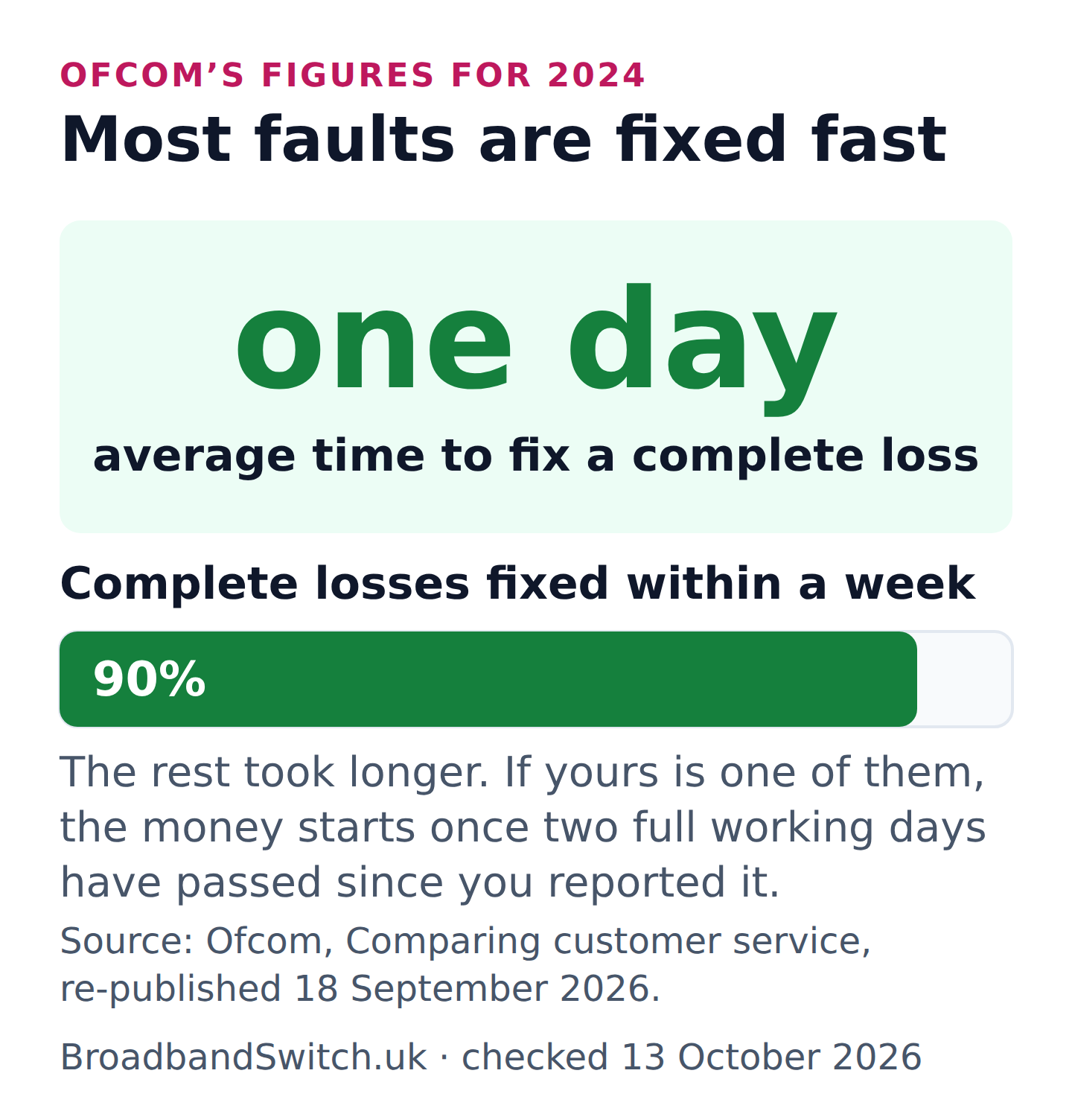
If your broadband has stopped, take a breath. Ofcom’s own figures show most complete losses are fixed in about a day, and 90% within a week.
Do three things, in this order. Check whether it is just you, using your phone on mobile data. Restart your router properly, off at the wall for a full minute. If it is still down, report it to your provider today.
Reporting it matters even if you think it will come back on its own, because the clock on any compensation starts when you tell them. If it is not fixed two full working days later, most people are owed £10.34 a day, paid automatically.
Offline right now? Find out what is wrong in five taps. Been down a while? See what you are owed.
Do these three things first
Direct answer: Check it is not just you, restart your router properly, and report it today. Most of the time, that is all it takes.
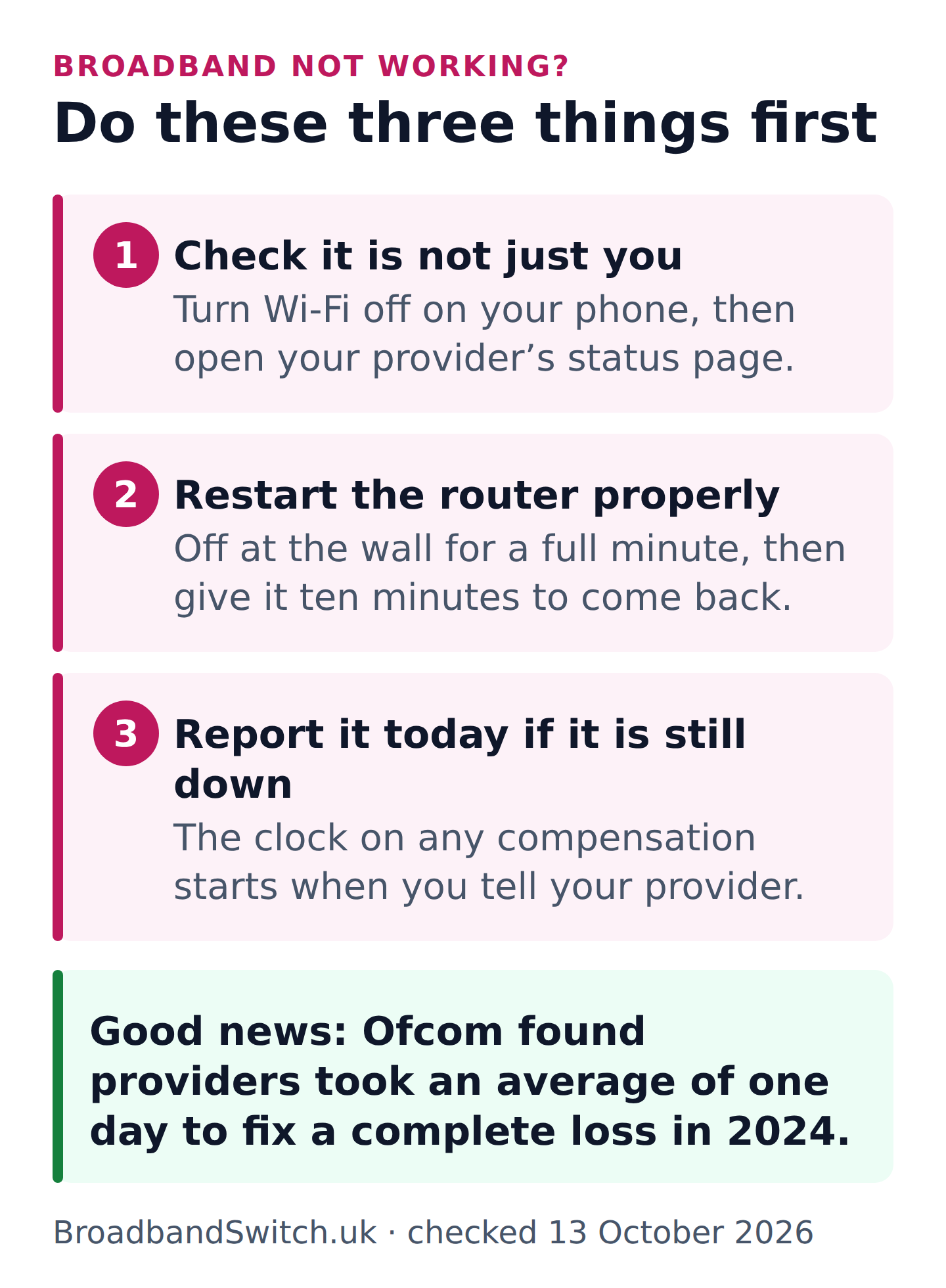
You are probably reading this on your phone, so we will keep it short. These are the same three things a support adviser will ask about when you call, so doing them first saves you time on the phone too.
1. Check whether it is just you
Turn Wi-Fi off on your phone so it uses mobile data, then open your provider’s service status page. If it shows a problem in your area, you can stop troubleshooting. The repair is theirs to do, so go straight to reporting it.
2. Restart your router properly
Switch the router off at the wall, not just with its own button. Leave it off for a full minute, then switch it back on and give it ten minutes. Flashing lights while it starts up are normal, so try not to judge it too soon.
Got full fibre, with a separate small box on the wall where the fibre comes in? Openreach suggests switching that box off at the plug for 30 seconds too. Do it once, as a fix. The rest of the time it is meant to stay plugged in and switched on.
In their own words
- Openreach
- “First, try turning your ONT off at the power source, waiting 30 seconds, then turning it back on.”
- “To avoid any disruption, it’s best to leave the ONT plugged in and always switched on.”
3. Report it today if it is still down
Tell your provider by phone, in their app or by online chat. It is worth doing even if you think it will come back on its own, because the clock on any compensation only starts when you report it. And with nothing showing on the status page, you may be the first person near you to tell them.
The good news, in Ofcom’s own figures
Most complete losses are fixed quickly. Providers took an average of one day to fix one in 2024, and fixed 90% within a week. So if your broadband has just died, the odds are you will be back online soon.
In their own words
- Ofcom, Comparing customer service, 2024 figures
- “Providers took an average of one day to fix faults in cases of a total loss of service.”
- “Ninety per cent of total loss of service faults were resolved within a week.”
Find out what is wrong in five taps
Direct answer: Five quick questions about what you can see. You will get the likeliest cause, three things to do next, and who to call. Nothing you choose leaves your phone.
Broadband troubleshooter
It runs on your phone. Nothing is sent anywhere.
Whatever it says, your provider has the final word, because only they can test your line from their end. If you are not back online after a proper restart, report it.

Is it just you, or your whole area?
Direct answer: Your provider’s own status page is the real answer. Check it on your phone with Wi-Fi switched off, because your home connection cannot load it.
Some status pages show known problems straight away. Others ask you to sign in or enter your phone number first, so it helps to have your account details handy.
| Provider | Check for a problem | More about them |
|---|---|---|
| BT | Check status | Our BT guide |
| Sky | Check status | Our Sky guide |
| Virgin Media | Check status | Our Virgin Media guide |
| EE | Check status | Our EE guide |
| Vodafone | Check status | Our Vodafone guide |
| TalkTalk | Check status | Our TalkTalk guide |
| Plusnet | Report a problem | Our Plusnet guide |
| NOW Broadband | Check status | Our NOW Broadband guide |
With a different provider? Our provider directory has every one, with how to contact them.
What about outage websites?
Websites that collect reports from the public can tell you whether other people near you are struggling. That is useful. What they cannot do is see your line, or tell you why something is down, so treat them as a second opinion rather than the answer.
Planned work is a wait, not a fault
Providers sometimes do planned work that takes a street offline for a short while. If the status page says it is planned and you were told about it in advance, the best thing you can do is wait it out. It does not count towards automatic compensation.
What the lights are telling you
Direct answer: Steady blue, white or green usually means your router is happy. Orange usually means it cannot reach the internet. Red means something is wrong.
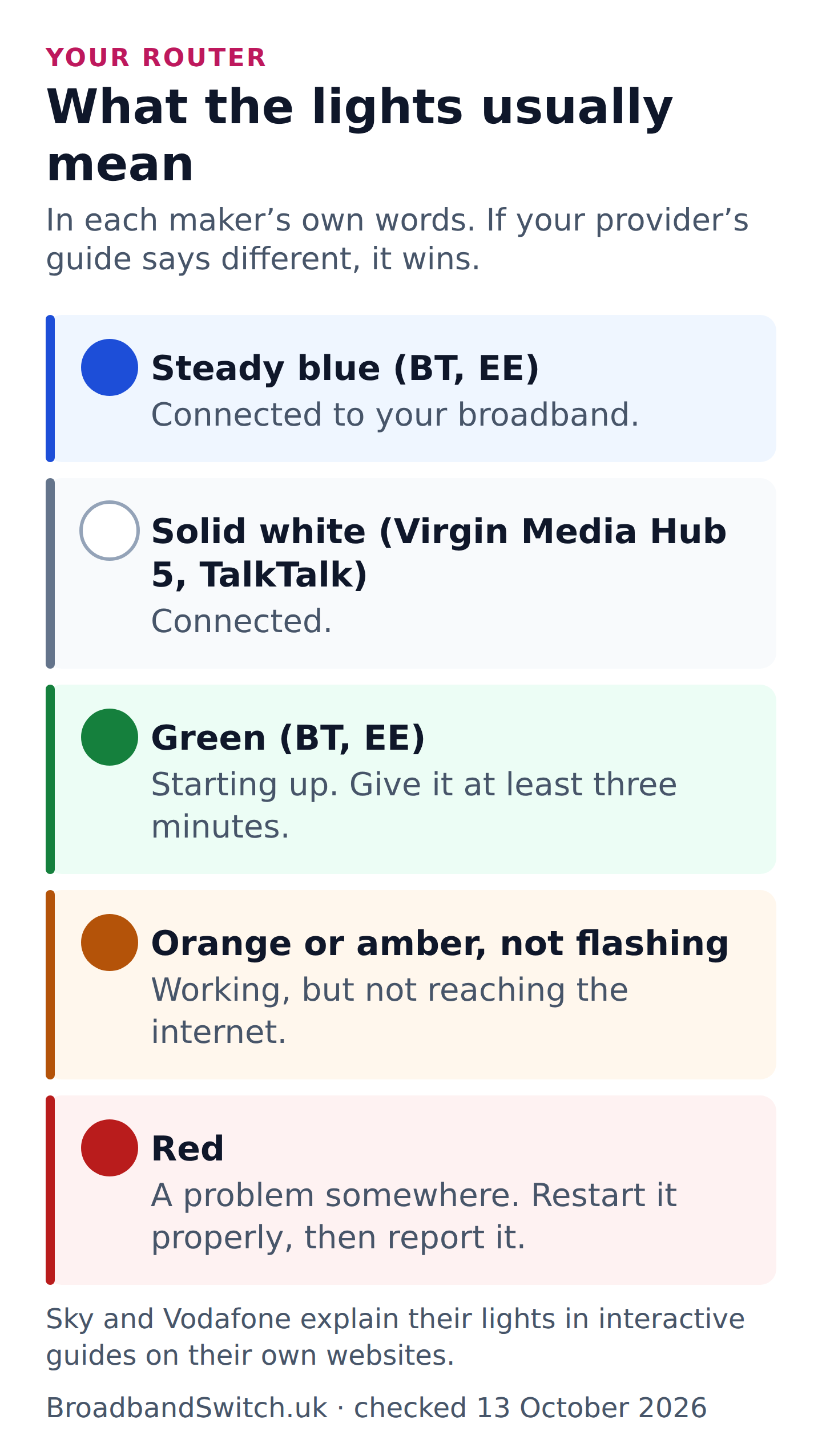
Every provider’s router is a little different, so here is what the most common ones say about themselves, in their makers’ own words.
In their own words
- BT, Smart Hub 2, blue
- “Your Hub is connected to your broadband ok”
- BT, Smart Hub 2, orange
- “Your Hub is working but isn’t connected to the internet”
- BT, Smart Hub 2, red
- “There’s a problem somewhere”
- TalkTalk, Wi-Fi Hub 3, white or blue
- “You’re connected to the internet”
- TalkTalk, Wi-Fi Hub 3, solid amber
- “Failed to connect to the internet”
- Virgin Media, Hub 5
- “When the WiFi light is on and the base light is solid white, the Hub has connected to our network successfully.”
EE’s Smart Hub uses the same colours as BT’s. Sky and Vodafone explain their lights in interactive guides on their own websites, so if you are with either of them it is best to check theirs.
The fibre box on your wall
If you have full fibre, there is usually a small box where the fibre comes into your home, separate from your router. Engineers call it an ONT, which is short for optical network terminal. Its lights tell you whether the problem is inside your home or out on the network.
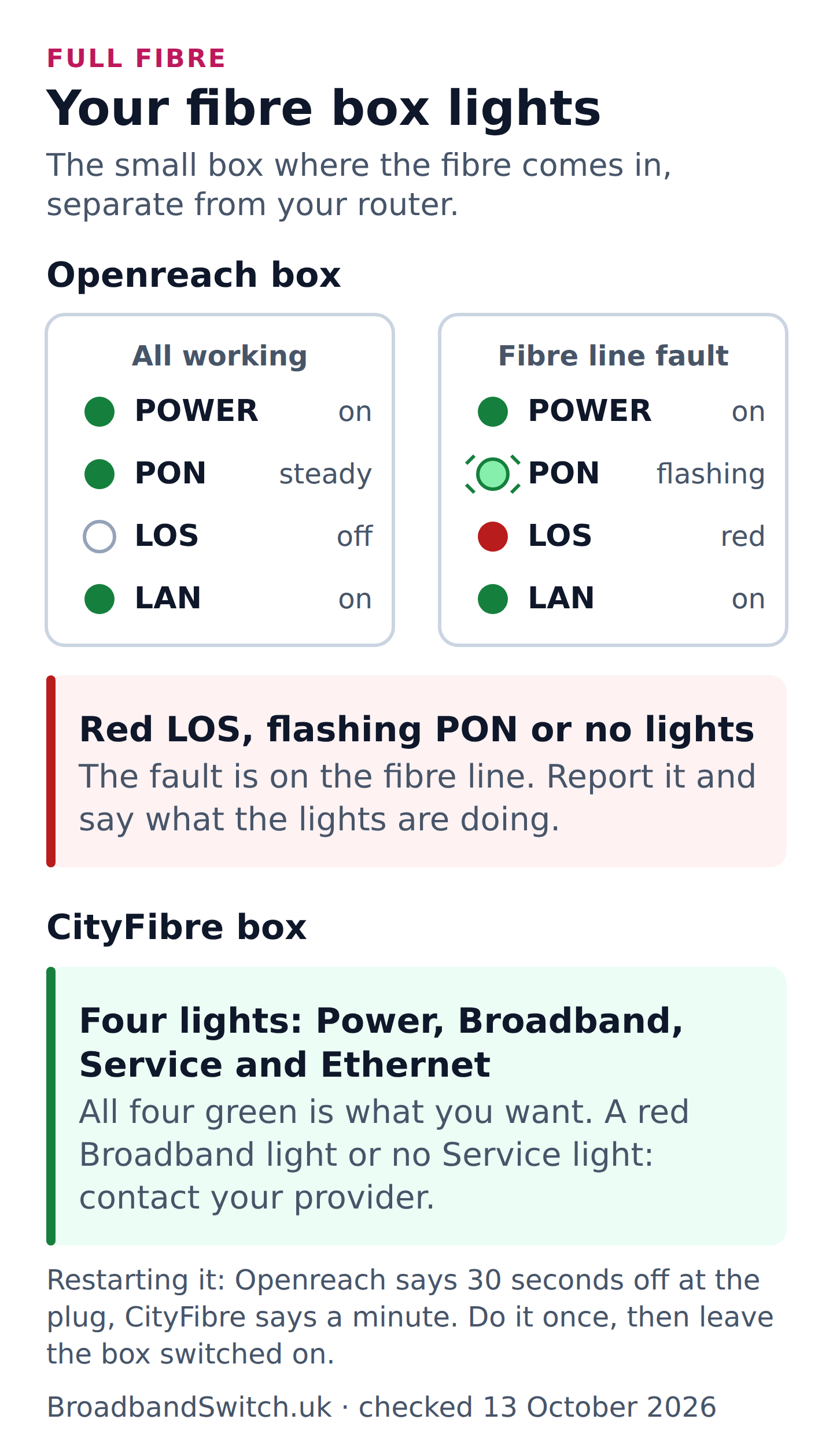
On an Openreach box, the two lights that matter are marked PON and LOS. PON steady green is good, and LOS should be off. If LOS turns red, PON starts to blink, or the box goes dark, the fault is out on the fibre line. That is a job for your provider rather than something you can fix.
In their own words
- Openreach
- “When you can see a solid PON and LAN light like this, you’re connected and ready to go.”
- “If there are no lights, a flashing PON light, or a red LOS light, there may be a connection issue.”
CityFibre’s boxes have four lights: Power, Broadband, Service and Ethernet. All four green is what you want. CityFibre says to contact your provider if the Broadband light is red or the Service light is off.
Whichever box you have, tell your provider exactly what the lights are doing when you report it. It helps them send the right person first time.

Wi-Fi says connected, but nothing loads
Direct answer: Your phone joining the Wi-Fi only proves it can reach your router. The break is usually further along, between the router and the internet.
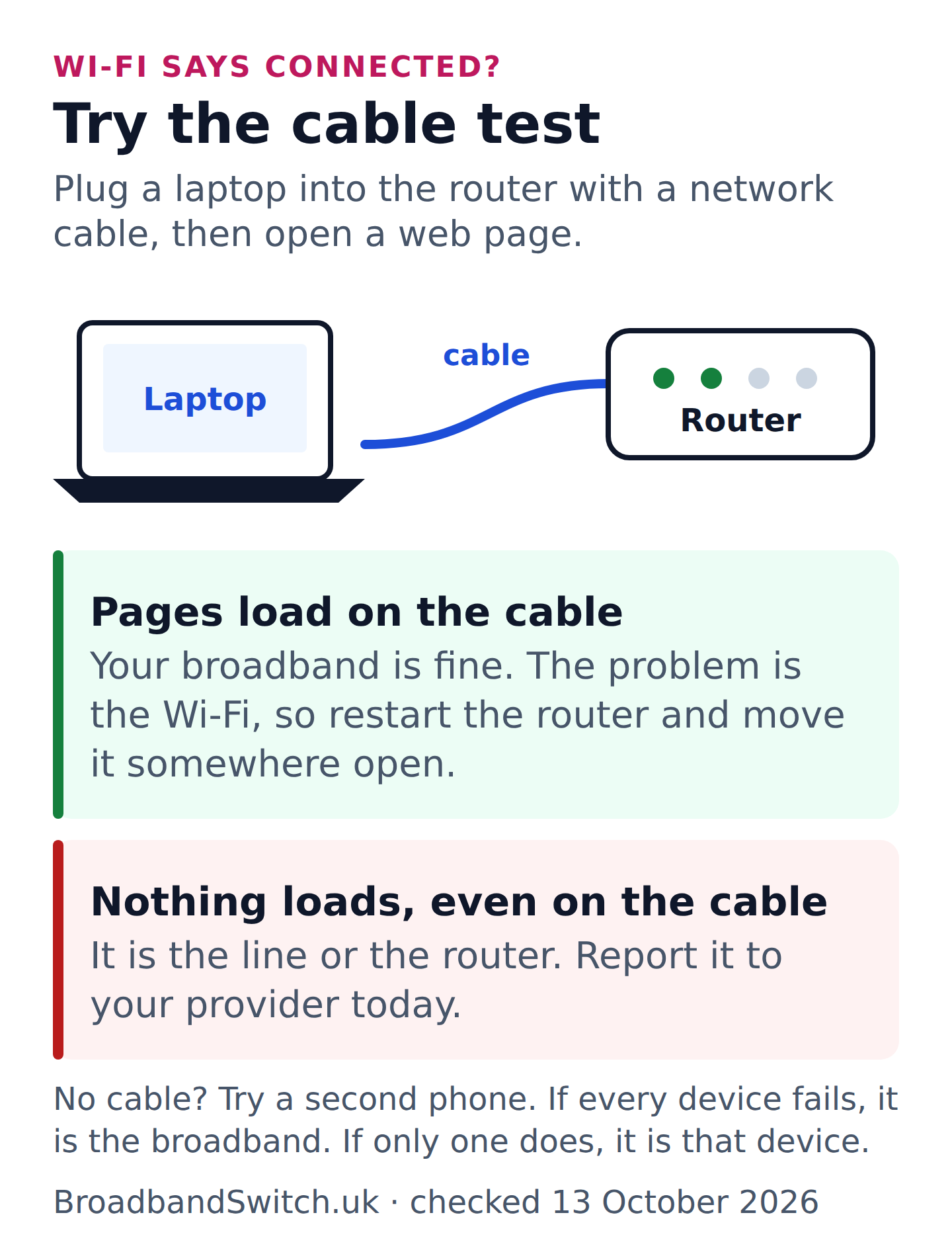
The quickest way to find out is to plug a laptop into the router with a network cable. If pages load on the cable, your broadband is fine and the problem is the Wi-Fi. If nothing loads on the cable either, it is the line or the router, and that is one to report.
No laptop or cable? Try a second phone or tablet instead. If every device fails, it is the broadband. If only one does, it is that device, so switch it off and on, forget the Wi-Fi network on it, and join again.
If it turns out to be the Wi-Fi, a proper restart of the router usually brings it back. If some rooms are always weak, that is coverage rather than a fault. Our free RouterMap tool shows you where your router will reach furthest.
Reporting it, the right way
Direct answer: Always report it to the company you pay each month. Even when Openreach or CityFibre owns the cable, your provider is the one who gets it fixed.
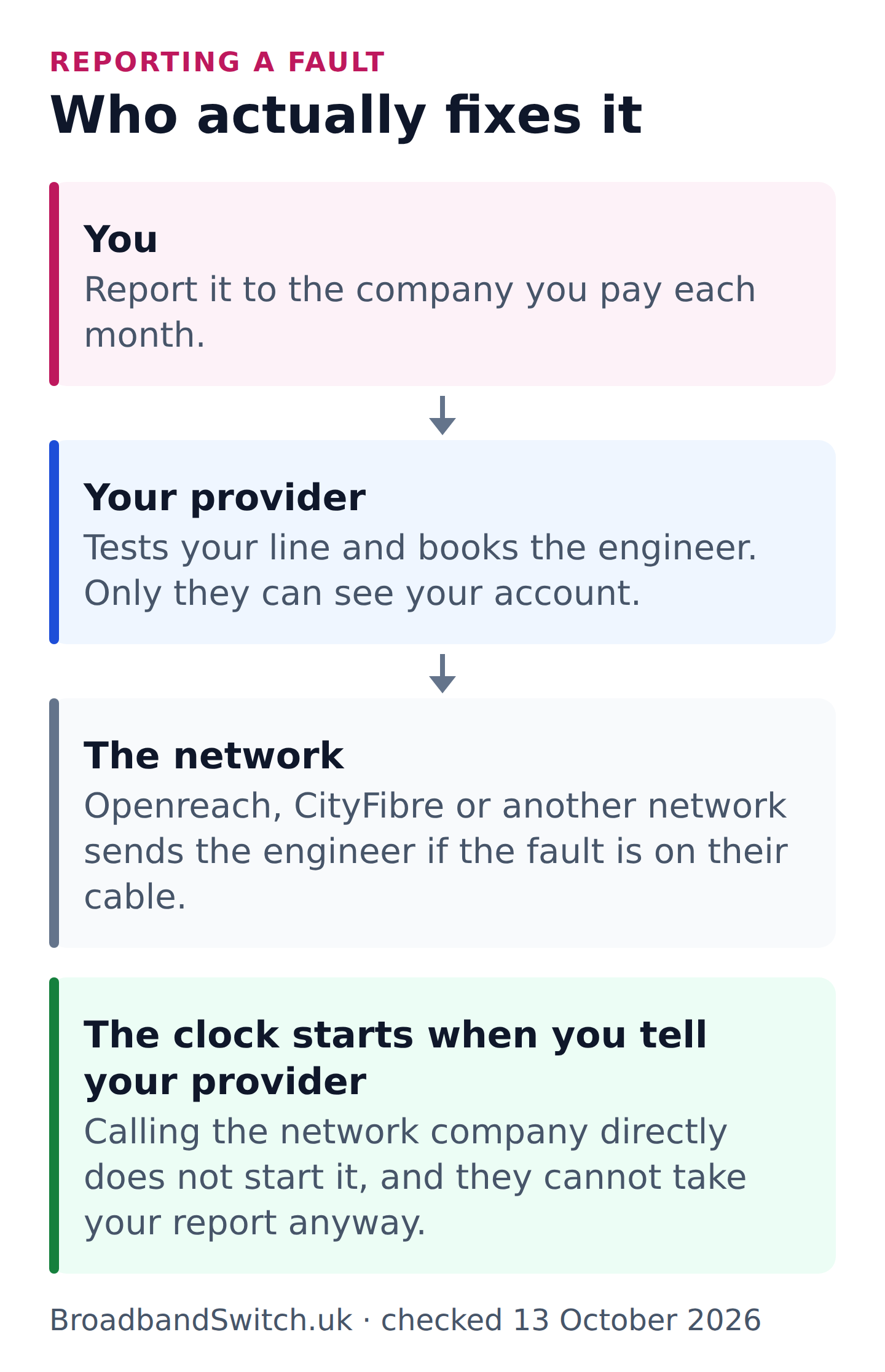
It can feel strange that the company whose engineer turns up is not the one you call. But the network companies cannot see your account, and only your provider can book their engineers, so going straight to them would only slow things down.
In their own words
- Ofcom, help with broadband problems
- “Your provider is responsible for fixing faults, even if another company like Openreach owns the network.”
- Openreach
- “We provide the network for many different providers, but we don’t manage customer accounts.”
- “Only your provider has access to your service details and can raise a repair with us.”
- CityFibre
- “For all broadband connectivity issues, please contact your broadband provider directly”
What to tell them
- When it stopped, and whether anything happened first, like a storm, a power cut or roadworks.
- What the lights are doing on your router, and on the fibre box if you have one.
- What you have already tried, so they do not ask you to do it all again.
- Whether anyone at home relies on the line for a care alarm or a medical device.
- That you would like a fault reference number, and the date they expect it fixed.
Write down the reference number and the time you reported it. If it drags on, that note is your record.

When the clock starts
The clock starts when you report it. Ofcom’s rule is that if it is still not working two full working days later, compensation begins.
In their own words
- Ofcom, automatic compensation
- “If your service has stopped working and is not fully fixed after two full working days after reporting the fault.”
- The industry code Ofcom hosts for the scheme
- “if a fault is reported on a Monday, compensation will become payable if the fault has not been fixed”
So report it on a Monday and it should be fixed by 11.59pm on Wednesday. Report it in the evening or at the weekend and the clock usually starts on the next working morning instead. Our compensation calculator works out the exact day for you, including bank holidays where you live.
Ways to report it that work for everyone
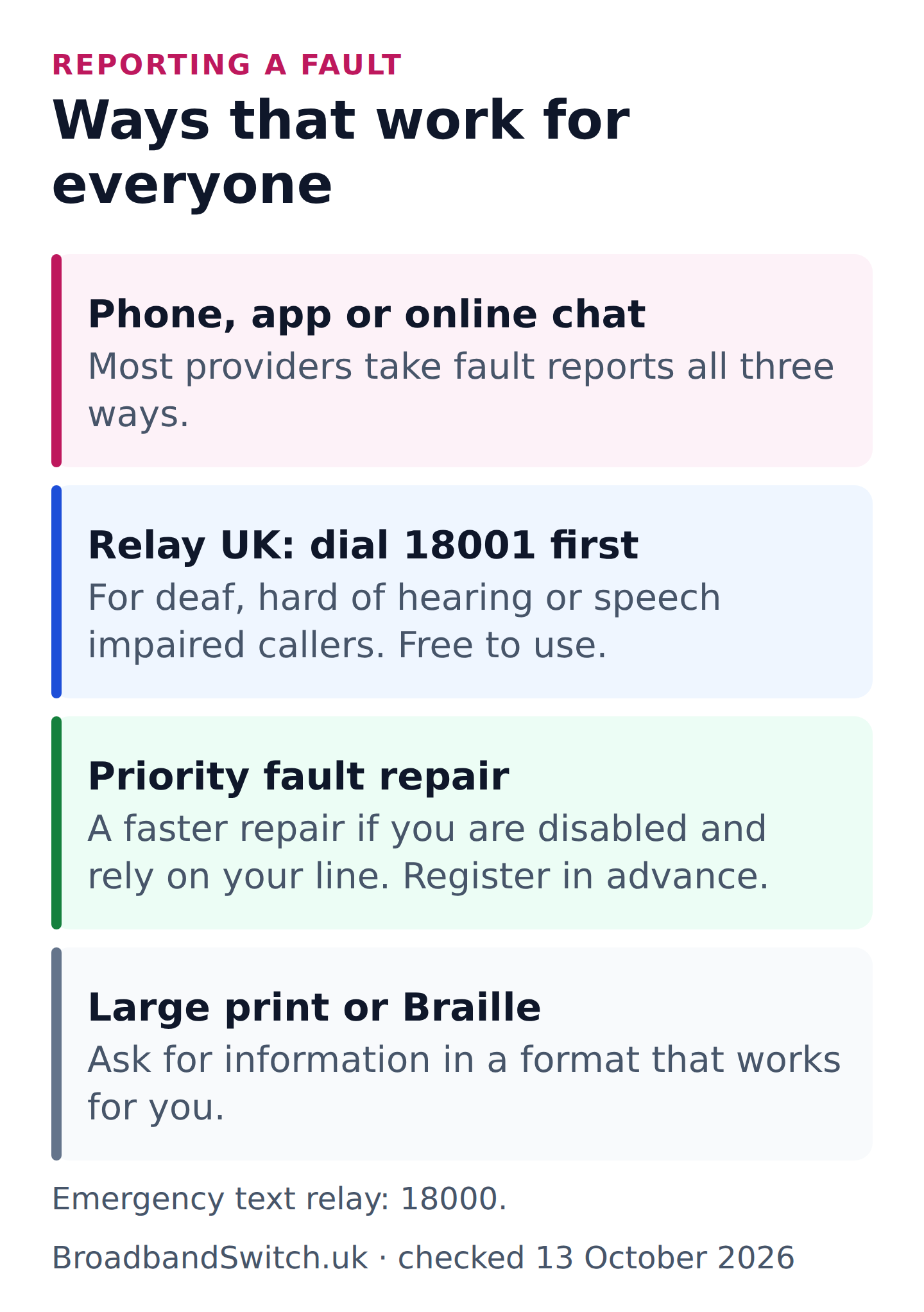
You do not have to make a voice call. Most providers let you report a fault in their app or by online chat as well as by phone, which is handy when your phone is your only way online.
If you are deaf, hard of hearing or have a speech impairment, you can call any provider through Relay UK by dialling 18001 before their number. Your phone provider has to give you access to it, and it costs no more than an ordinary call.
In their own words
- Ofcom, text relay guide
- “Your phone provider must give you access to an approved text relay service.”
- “Relay UK is free to use, and text relay calls cost no more than a standard telephone call.”
If you are disabled and rely on your line, you are entitled to a faster repair, called priority fault repair, and it must not cost more than a normal one. The catch is that you register for it before anything goes wrong. So it is worth asking your provider about it today, even if everything is working.
In their own words
- Ofcom, accessibility of communications services
- “Disabled people in need of an urgent repair to their landline or broadband can have this done more quickly than normal.”
- “It should not cost you more than your provider’s standard charge for a fault repair.”
- “Register with your provider in advance for this.”
You can also ask for letters, bills and information in a format that works for you, such as large print or Braille. And if you are sorting this out for a parent or relative, our guide to helping an older relative with their broadband covers how to do it with their blessing.
While you wait: staying online and safe
Direct answer: Your phone is your bridge. Turn on its hotspot and your laptop or tablet can share its mobile data while the repair is done.
On an iPhone it is called Personal Hotspot, and on Android it is usually Mobile Hotspot, both in Settings. Join it from your laptop like any other Wi-Fi network. Keep the phone on charge, because sharing drains the battery quickly, and keep an eye on your data, since video calls and streaming use a lot.

It is also worth asking your provider what they can do for you. Ofcom suggests asking what they can do to keep you in touch while it is fixed, for example by diverting calls from your landline to your mobile. If you work from home and outages really hurt, our guide to avoiding downtime covers proper back-up kit.
In their own words
- Ofcom, help with broadband problems
- “Ask whether your provider can help you stay connected during repairs.”
Your landline, and anyone who relies on it
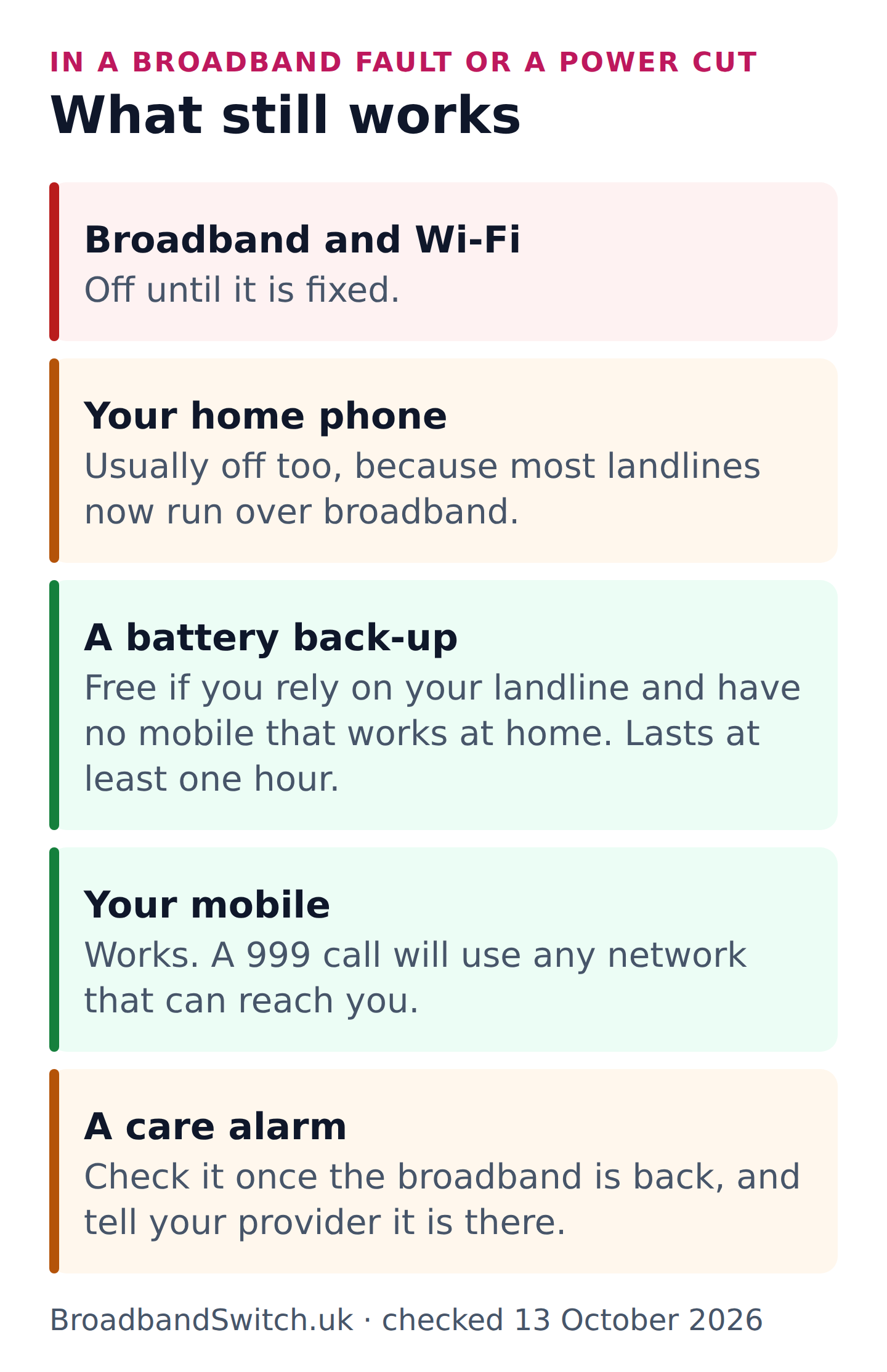
Most home phones now run over broadband, so when broadband stops, the landline usually stops with it. A power cut does the same, because your router needs mains power. The old copper phone network is being switched off by 31 January 2027, so this applies to more homes every month.
In their own words
- Ofcom, your landline is going digital
- “Digital landlines need mains electricity and will not work in a power cut unless there is a battery back-up.”
If you rely on your landline and do not have a mobile that works at home, your provider must offer you a free battery back-up. It has to last at least one hour, and some last up to seven hours.
For everyone else, your mobile is the back-up. Even if your own network has no signal where you are, a 999 call will connect through any other mobile network that can reach you.
In their own words
- Ofcom, your landline is going digital
- “Even if you have no signal on your usual mobile network, calling 999 will automatically connect through another mobile network if one is available.”
If someone at home has a care alarm or a health pendant, check it is working again once the broadband is back. Some alarms struggle on a digital line, so if you have not already, tell your provider it is there. Our guides to care alarms and digital landlines go into the detail, and the free landline switch-off checker turns it into a checklist.
In their own words
- Ofcom, your landline is going digital
- “Your care alarm or telecare device might not work properly on a digital landline.”
- Ofcom, help with broadband problems
- “Tell your provider if you rely on your connection for telecare or healthcare devices, alarms, or if someone in your household is vulnerable.”
Children online on a different connection
When everyone moves onto mobile data, the filters on your home router stop applying. If children are online while it is down, it is a good moment to check the controls on their own devices. Our free online safety hub walks you through it, and its router guide helps you switch everything back on afterwards.
What you are owed
Direct answer: If your broadband is completely down and is not fixed two full working days after you report it, you are owed £10.34 for every day after that. You do not need to ask. It arrives as a credit on your bill.
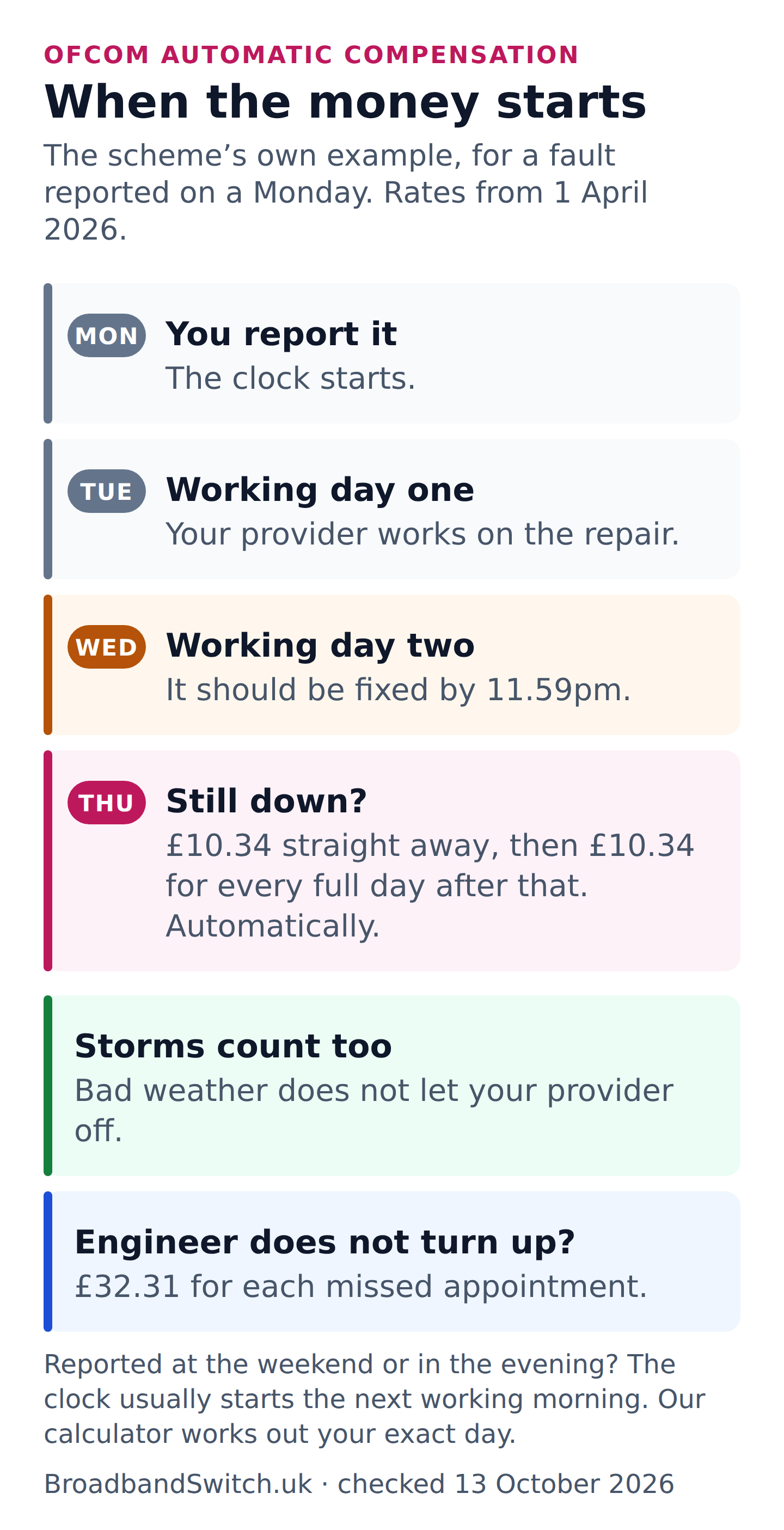
That rate has applied since 1 April 2026. If an engineer does not turn up, or cancels with less than a day’s notice, that is another £32.31. The credit should reach your account within 30 calendar days of the fault being fixed.
Storms still count
Here is the part many people do not know. Bad weather does not let your provider off. Ofcom says the money is still owed for things outside everyone’s control, including extreme weather, strikes and damage caused by someone else.
In their own words
- Ofcom, automatic compensation
- “you should get compensation even when the problem is caused by an event beyond your, or your provider’s control”
Who is in the scheme
There are ten providers signed up: BT, EE, Hyperoptic, Plusnet, Sky (including NOW Broadband), TalkTalk, Utility Warehouse, Virgin Media, Vodafone and Zen Internet. Ofcom adds that for TalkTalk, restrictions apply if you are not on the Openreach network. Between them, the scheme’s members covered 97% of landline and 91% of broadband customers at the end of 2024.
It covers a complete loss, meaning no internet at all. It does not cover broadband that is slow or keeps dropping out, problems caused by your own equipment, or planned work you were told about in advance. Those are still worth complaining about.
In their own words
- The industry code Ofcom hosts for the scheme
- “A communications provider is not required to pay compensation where a customer experiences an intermittent loss of service.”
The scheme works, too. In 2024 it paid out around a million times across its three kinds of problem.
If your provider is not in the scheme
You are not left out. Ofcom suggests asking your provider for an account credit while the fault is fixed. And the law is on your side, because every broadband contract has to be carried out with reasonable care and skill. If it is not, you can ask for the price to come down, and that can be the whole price.
In their own words
- Ofcom, help with broadband problems
- “Ask your provider whether they will offer an account credit or compensation while the fault is being fixed.”
- Consumer Rights Act 2015
- “the trader must perform the service with reasonable care and skill”
- “The amount of the reduction may, where appropriate, be the full amount of the price.”
Want the detail? Our guide to the compensation rates has worked examples, the calculator works out your own figure, and our compensation guide covers what to do if the money does not arrive.
If it keeps happening
Direct answer: Keep a note every time it goes down. Then make a complaint, and if your provider cannot sort it within six weeks, a free ombudsman can step in.
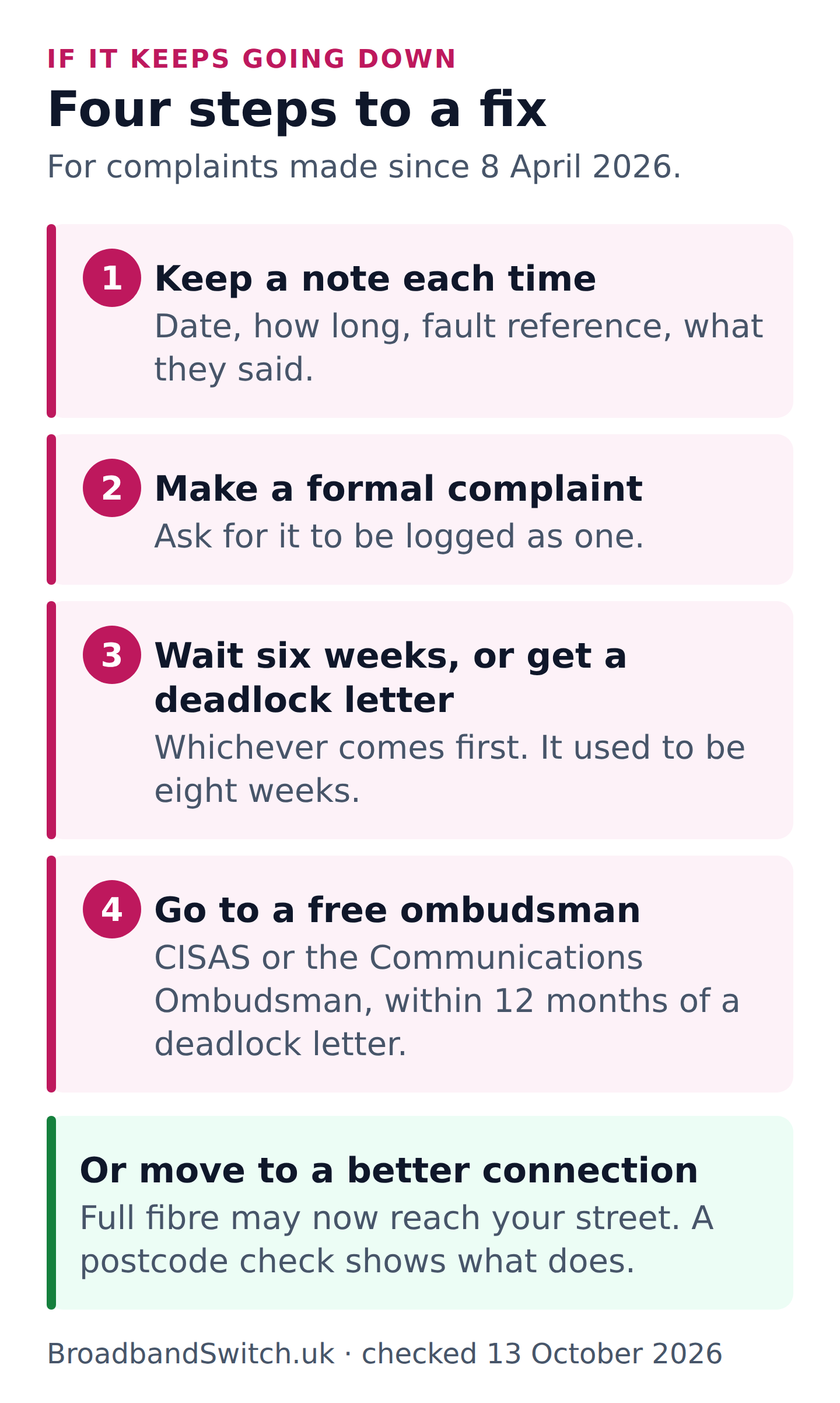
A note on your phone is plenty: the date, how long it was down, the fault reference and what they told you. It turns “it keeps happening” into something your provider has to answer properly.
Ask for your complaint to be logged as a formal complaint. Since 8 April 2026, the wait is shorter. If your complaint is still not sorted after six weeks, you can take it to an ombudsman for free. That wait used to be two weeks longer. You can go sooner if your provider sends a deadlock letter, which says it cannot agree with you.
There are two: the Communications Ombudsman and CISAS. Your provider’s complaints page will say which one it uses, and you have 12 months from a deadlock letter to go to them. Our complaints guide walks you through every step.
Sometimes the best fix is a better connection
If you are on an older line that keeps failing, full fibre may well reach your street by now, and it tends to be more reliable. Whether you can leave your current contract early without a fee depends on your contract and how bad the faults have been. Our guide to leaving early covers when you can.

Working, but slow or dropping out
Direct answer: That is a different problem from a complete loss, with different fixes. It is not covered by automatic compensation, but you can still complain about it.
Start with our free speed test, once on a cable and once on Wi-Fi. If the cable is fast and the Wi-Fi is slow, the problem is inside your home. If both are slow, it is the line, and that one is for your provider.
If it is fine in the day but slow every evening, busy times are the usual reason. If it stutters on video calls or games, our live quality monitor shows you what is happening as it happens. And our guide to speeds lower than advertised covers your rights if it never gets better.
What this page used to say
Direct answer: Four things. Two were small slips. Two could have cost you time: a restart rule that does not fit every router, and an ombudsman route that was missing its newest rule.
Code printed in the middle of a sentence
What this page saidThe compensation section printed a fragment of link code as visible text, so readers saw part of a web address and a stray quotation mark in the middle of a paragraph. The same section carried a link that went nowhere.
What it says now, and whyBoth are gone. Every link on this page has been followed, and the build now fails if a paragraph ever prints its own markup again.
The wrong date for Ofcom’s compensation page
What this page saidThe page said Ofcom’s automatic compensation guidance was last updated on 2 July 2026.
What it says now, and whyOfcom’s page says it was last updated on 20 July 2026. The amounts it quoted were right; the date beside them was not.
One restart time for every router
What this page saidThe page said 30 seconds off at the wall is what a proper router restart needs, as if that were true of every router.
What it says now, and whyProviders do not agree. BT and Virgin Media say 10 seconds and EE says a minute. TalkTalk’s advice for fibre is the longest: “turn your router off for 20 minutes”. The page now gives one simple instruction and says your own provider’s guide wins.
The ombudsman route was missing a rule
What this page saidThe page said you can go to an ombudsman once you reach deadlock with your provider.
What it says now, and whySince 8 April 2026 you can also go after six weeks without a deadlock letter. It used to be eight. The page now says both.
Corrections are published rather than quietly edited, with the date each source was read. If you think something here is still wrong, tell us and a person will check it against the source.
Broadband not working: frequently asked questions
Why has my broadband stopped working?
Usually one of a handful of things. There may be a fault in your area, or the router needs a proper restart. It could be a loose cable, a problem with the fibre line into your home, or no power to the router. Work through the three steps at the top of this page in order and you will usually know which within ten minutes.
How do I check if broadband is down in my area?
Turn Wi-Fi off on your phone so it uses mobile data, then open your provider’s service status page. The table on this page links to the main ones. Sites that collect reports from the public can show whether other people are struggling, but only your provider can see your line.
How long should I turn my router off for?
Switch it off at the wall and leave it for a full minute, then give it ten minutes to come back. Providers vary: BT and Virgin Media say 10 seconds and EE a minute. For fibre, TalkTalk says “turn your router off for 20 minutes”. If your provider’s own guide says something different, follow theirs.
Who do I call, my provider or Openreach?
Your provider, the company you pay each month, every time. Ofcom is clear: “Your provider is responsible for fixing faults, even if another company like Openreach owns the network.” Openreach and CityFibre both say they cannot take reports from customers directly.
How long do broadband faults take to fix?
Usually not long. Ofcom found providers took an average of one day to fix a complete loss in 2024, and fixed 90% within a week. Openreach says “Many faults are fixed within 1-2 working days.” Damage to underground cables can take longer.
Will I get compensation if my broadband is down?
If your provider is one of the ten in Ofcom’s scheme and your broadband is completely down, yes. Once two full working days have passed since you reported it, you are owed £10.34 for every further day. It is paid as a credit on your bill, without you having to ask.
Does compensation still apply if a storm caused the fault?
Yes. Ofcom says the money is still owed for events outside everyone’s control, including extreme weather, strikes and damage caused by someone else. It is one of the most commonly misunderstood parts of the scheme.
What does a red light on my router or fibre box mean?
On most routers, red means something is wrong: restart it properly, and report it if the red comes back. On a full fibre box, a red light marked LOS, or a flashing light marked PON, points at the fibre line itself. That needs an engineer, so report it and say exactly what the light is doing.
My Wi-Fi says connected but there is no internet. Why?
Your device can reach the router, but the router cannot reach the internet. Plug a laptop into the router with a cable. If that works, the problem is the Wi-Fi. If it does not, it is the line or the router, and you should report it.
Does my landline work when my broadband is down?
Usually not. Most home phones now run over broadband, so they stop when it does, and in a power cut too. If you rely on your landline and have no working mobile at home, your provider must offer you a free battery back-up lasting at least one hour.
I am deaf or disabled. How do I report a fault?
You can call any provider through Relay UK by dialling 18001 before their number, at no extra cost. If you are disabled and rely on your line, you are entitled to priority fault repair, but you need to register with your provider in advance.
How long before I can take a complaint to the ombudsman?
For complaints made since 8 April 2026, six weeks, or sooner if your provider sends you a deadlock letter. It is free, and you have 12 months from a deadlock letter to use it.
In short
- Most complete losses are fixed quickly. Ofcom found providers took an average of one day in 2024, and fixed 90% within a week.
- Check whether it is just you on your phone, with Wi-Fi off, using your provider’s status page.
- Restart the router at the wall, leave it off for a full minute, then give it ten minutes. Your own provider’s guide wins if it says something different.
- Steady blue, white or green is usually good. Red means a problem. On a fibre box, a red light or a flashing one points at the fibre line.
- Always report it to the company you pay, even if Openreach or CityFibre owns the cable.
- Report it today. After two full working days most people are owed £10.34 a day, automatically, and that includes faults caused by storms.
- Deaf, disabled or relying on a care alarm? Relay UK, priority fault repair and free battery back-up are there for you, but some need registering in advance.
- If it keeps happening, complain. Since 8 April 2026, a free ombudsman can step in after six weeks.
Each line stands on its own. Reviewed by a person at least quarterly, last on .
References
- OFCOM.ORG.UK
Ofcom. Comparing customer service: mobile, home broadband and landline. Published 22 May 2025, re-published 18 September 2026, covering 2024. The average of one day to fix a total loss, the 90% fixed within a week, and around a million compensation payments in the year. The original edition said 88%; the reissue says 90%.
- OFCOM.ORG.UK
Ofcom. Automatic compensation: what you need to know. Published 12 March 2024, last updated 20 July 2026. The amounts, the two working day trigger, the list of providers signed up, and the line that storms and strikes still count.
- OFCOM.ORG.UK
Ofcom. Quicker complaints resolution and more money in your pocket when things go wrong. Published 8 April 2026. The date the current amounts took effect and the shorter, six-week wait before a complaint can go to an ombudsman.
- OFCOM.ORG.UK
Ofcom. Communications Providers’ Voluntary Code of Practice for an automatic compensation scheme. Updated 7 March 2025. The Monday to Wednesday example, what happens to a report made outside working hours, and why a fault that comes and goes is not paid automatically. It does not define a working day.
- OFCOM.ORG.UK
Ofcom. Get help with broadband and Wi-Fi problems. Published 13 October 2023, last updated 25 August 2026. Who is responsible for fixing faults, asking for help to stay connected, account credit, and priority fault repair.
- OFCOM.ORG.UK
Ofcom. Making a complaint and using alternative dispute resolution schemes. Published 8 March 2024, last updated 6 August 2026. Six weeks or a deadlock letter, 12 months to apply, free, and the two approved schemes.
- OFCOM.ORG.UK
Ofcom. Your landline is going digital: what you need to know. Published 7 February 2024, last updated 26 August 2026. Power cuts, the free battery back-up, 999 on another mobile network, and care alarms.
- OFCOM.ORG.UK
Ofcom. Accessibility of communications services. Published 8 August 2023, last updated 26 August 2026. Priority fault repair for disabled people and information in large print or Braille.
- OFCOM.ORG.UK
Ofcom. Text relay: making phone calls if you have a hearing or speech difficulty. Published 26 September 2014, last updated 26 August 2026. Relay UK, 18001 and 18000.
- OPENREACH.COM
Openreach. What to do if your broadband stops working, How to set up full fibre broadband and Openreach equipment in your home. No publication dates shown. Who to contact, typical repair times, and what the lights on the fibre box mean, the last from the set-up video’s transcript because Openreach publishes no light-by-light table.
- OPENREACH.COM
Openreach. Switching off the Public Switched Telephone Network. No publication date shown. All traditional phone lines going digital by 31 January 2027.
- CITYFIBRE.COM
CityFibre. My full fibre broadband has stopped working, what can I do? No publication date shown. Contact your provider, and the four lights on its fibre box.
- BT.COM · EE.CO.UK
BT and EE help pages on Smart Hub lights. No publication dates shown. What blue, green, orange and red mean, in each company’s own words.
- TALKTALK.CO.UK
TalkTalk help centre. Wi-Fi Hub 3 and What to do if your internet is down. No dates shown on the pages. Hub light meanings and the 20 minute restart for fibre customers.
- VIRGINMEDIA.COM
Virgin Media. Set up your broadband. No date shown. A solid white base light means the Hub is connected.
- LEGISLATION.GOV.UK
Consumer Rights Act 2015, sections 49 and 56, up to date to 13 October 2026. Reasonable care and skill, and the right to a price reduction.
Ready to see what else reaches you?
Fed up with it going down? One postcode shows every provider that reaches your address, full fibre included, with the cheapest first. It takes a minute, and there is no sign-up to look.
Compare at my postcode →