TP-Link router login and default password

To log in to a TP-Link router, open a web browser and go to tplinkwifi.net or 192.168.0.1 (tplinkmodem.net / 192.168.1.1 on 4G/5G; tplinkrepeater.net on extenders) while connected to the router. Sign in with username admin (legacy) or none (set on first login) and the password (Legacy: admin. Modern: set on first login, or unique password on label). Always change the default to a strong password of your own.
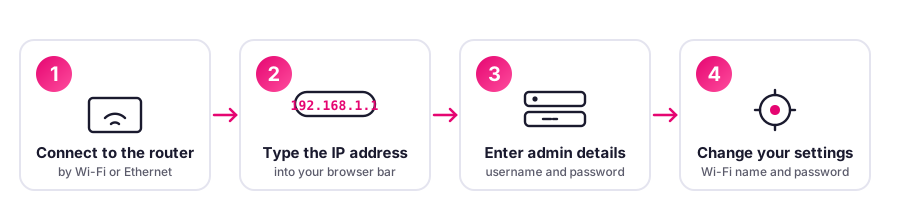
TP-Link login address by model
Type the address for your model into your browser while connected to the router. Firmware is shown only where TP-Link publishes an exact version openly, otherwise it is auto-updated or checked per device. See the full detail in our UK router directory.
| Model | Login address | Wi-Fi | Latest firmware | Confidence |
|---|---|---|---|---|
| Archer AX10 | 192.168.0.1 | WiFi 6 | Gated behind device lookup | High |
| Archer AX20 | 192.168.0.1 | WiFi 6 | Gated behind device lookup | High |
| Archer AX55 | 192.168.0.1 | WiFi 6 | Gated behind device lookup | High |
| Archer AX6000 | 192.168.0.1 | WiFi 6 | Gated behind device lookup | High |
| Archer AX72 | 192.168.0.1 | WiFi 6 | Gated behind device lookup | High |
| Archer AX73 | 192.168.0.1 | WiFi 6 | Gated behind device lookup | High |
| Archer AX90 | 192.168.0.1 | WiFi 6 | Gated behind device lookup | High |
| Archer BE550 | 192.168.0.1 | WiFi 7 | Gated behind device lookup | High |
| Archer BE800 | 192.168.0.1 | WiFi 7 | Gated behind device lookup | High |
| Archer C6 | 192.168.0.1 | WiFi 5 | Gated behind device lookup | High |
| Archer C7 | 192.168.0.1 | WiFi 5 | Gated behind device lookup | High |
| Archer VR2100 | 192.168.1.1 | WiFi 5 | Gated behind device lookup | High |
| Archer VR400 | 192.168.1.1 | WiFi 5 | Gated behind device lookup | High |
| Archer VR600 | 192.168.1.1 | WiFi 5 | Gated behind device lookup | High |
| Deco BE85 | 192.168.68.1 | WiFi 7 | Gated behind device lookup | High |
| Deco X20 | 192.168.68.1 | WiFi 6 | Gated behind device lookup | High |
| Deco X50 | 192.168.68.1 | WiFi 6 | Gated behind device lookup | High |
| Deco X60 | 192.168.68.1 | WiFi 6 | Gated behind device lookup | High |
| Deco XE75 | 192.168.68.1 | WiFi 6E | Gated behind device lookup | High |
Default TP-Link username and password
Admin address: tplinkwifi.net or 192.168.0.1 (tplinkmodem.net / 192.168.1.1 on 4G/5G; tplinkrepeater.net on extenders). Username: admin (legacy) or none (set on first login). Password: Legacy: admin. Modern: set on first login, or unique password on label. You will usually find the details label on base; web setup wizard.
Change immediately; modern Archer models force a password on first use Under the UK PSTI Act, in force since 29 April 2024, universal default passwords are banned on new kit sold in the UK, so newer models ship with a unique password on the label.
How to factory reset a TP-Link router
- Locate the recessed Reset button on the back or base.
- With the router on, hold it with a paperclip for about 10 seconds.
- Release when the lights change, then let the router restart.
- Set up your Wi-Fi name and a new strong password again.
A reset restores factory defaults and erases custom settings.
Frequently asked questions
How do I log in to a TP-Link router?
Open a web browser and go to tplinkwifi.net or 192.168.0.1 (tplinkmodem.net / 192.168.1.1 on 4G/5G; tplinkrepeater.net on extenders) while connected to the router. Username: admin (legacy) or none (set on first login). Password: Legacy: admin. Modern: set on first login, or unique password on label
What is the default IP address for a TP-Link router?
Common default gateway addresses for TP-Link routers are 192.168.0.1, 192.168.1.1, 192.168.68.1. If one does not open, check the label on the base of the router for the exact address.
How do I reset a TP-Link router?
Use a paperclip to press and hold the recessed Reset button for about 10 seconds until the router restarts. This restores factory defaults and erases any custom settings, so you will need to set up your Wi-Fi name and password again.
What do I do if the default TP-Link password does not work?
Someone may have changed it, or your unit ships with a unique password printed on its label. Check the base sticker first, and if you are still locked out, factory reset the router to restore the label credentials.
Spotted something wrong? Help us keep this accurate
We make good efforts to keep this page accurate and up to date, and we genuinely love working with our readers to get it right. If you think a detail is wrong, or you know something others would find helpful, please tell us and we will check it and update the page. Your collaboration is really valuable.