By Dr Alex J Martin-Smith, Strategic Lead
Direct answer: Router hijacking changes settings on your broadband router without your permission. DNS hijacking redirects website requests through different DNS settings. For UK households, the immediate priority is to secure the router, verify its settings and passwords, then assess whether your broadband service itself needs changing.
- A changed DNS setting can be deliberate, so check before assuming an attack.
- Unexpected login pages, changed router settings and unknown connected devices deserve prompt attention.
- Resetting a router removes customised settings, so record your broadband connection details first.
- Changing broadband provider can be sensible at renewal, but it does not replace securing the home network.
What is router hijacking and DNS hijacking?
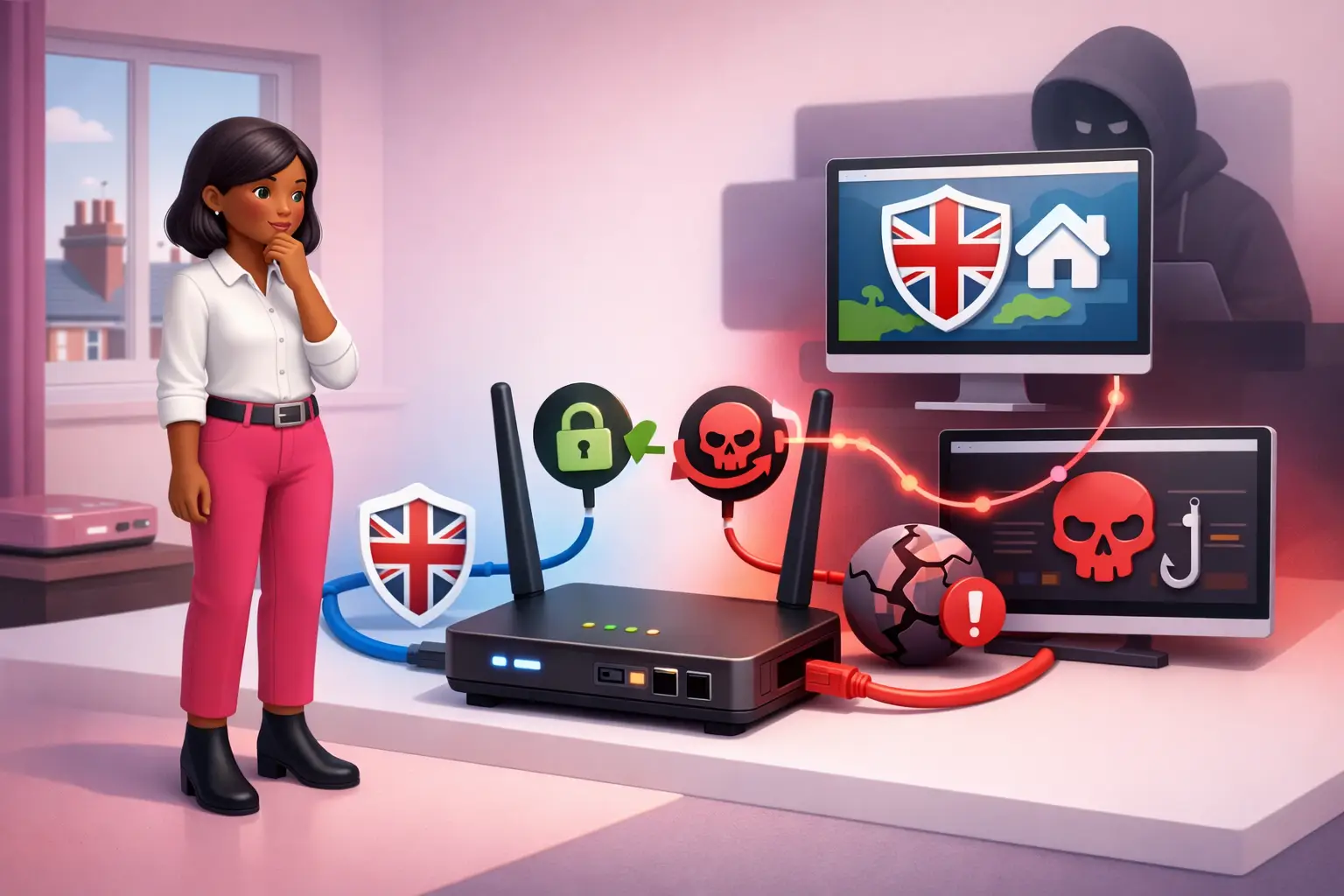
Router hijacking and DNS hijacking explained UK: both issues concern where your internet connection sends requests, but they are not identical. Router hijacking means somebody gains access to the router administration controls and alters settings, which may include the Wi-Fi password, administrator password, DNS servers or remote management options.
DNS hijacking is the redirection of DNS lookups. DNS is the system that translates a website name into the destination your device should contact. If DNS settings have been changed maliciously, a typed web address could lead to an unwanted destination or show an imitation sign-in page. DNS changes can also occur on one device rather than the router, so a problem affecting only one laptop or mobile phone does not automatically mean the router has been compromised.
The practical distinction matters. A router problem can affect every device connected at home, whilst a device-specific DNS setting may need a more focused fix. In either case, do not enter passwords or payment details on a page that appears unexpectedly.
How does router hijacking happen?
Router hijacking usually depends on access to the router controls, rather than a fault with the broadband line itself. Common routes include a weak or reused administrator password, leaving the default administrator password in place, giving access to an untrusted person, or using an outdated router with unpatched software.
A convincing fake sign-in page can also capture credentials if a household member enters the router administrator password. This is separate from the Wi-Fi password. The Wi-Fi password lets devices join the network; the administrator password changes how the router operates. Treat both as sensitive, but give the administrator password its own long, unique value.
Remote management deserves particular care. It can be useful where a legitimate support process requires it, but it creates another route to the settings page. If you do not have a clear reason to use it, disable it in the router controls. Keep router software current through the provider or router manufacturer process, and remove devices you do not recognise from the connected device list.
How can I tell if my router or DNS is hijacked?
Warning signs are useful prompts to investigate, not proof that a router has been hijacked. Start by checking whether the issue appears on several devices using your home Wi-Fi, then compare with a connection outside the home, such as another trusted network.
| What you notice | What it may mean | First check |
|---|---|---|
| A website sign-in page looks unfamiliar | A deceptive page, browser issue or DNS change | Do not sign in. Check the address carefully and try later from a trusted connection. |
| Several devices are redirected | A shared router or DNS setting may be involved | Review the router DNS settings and administrator access. |
| Only one device has the problem | A device setting or browser issue is more likely | Check that device's network and DNS settings. |
| The router password no longer works | Settings may have been changed | Use the official router recovery process and secure the account. |
Other clues include unknown devices on Wi-Fi, configuration pages you do not remember changing, or DNS servers that differ from the setting you intended to use. Take screenshots of unexpected settings before changing them. They can help you explain the issue to your broadband provider if support is needed.
What should I do if I think my router has been hijacked?
Act in a deliberate order: protect access first, then restore settings. Disconnect any device you do not recognise from the network if the router permits it. Change the router administrator password and the Wi-Fi password from a device you trust, using different passwords for each. Then review the DNS, remote management and connected device settings.
If you cannot establish what has changed, a factory reset is often the cleanest route. It returns the router to its original configuration, but it also removes any settings you deliberately added. Before resetting, check whether you need a broadband username, password, or other connection details to get back online. Your provider can explain the correct setup for its service.
After the reset, install available router software updates and set a new administrator password before reconnecting household devices. Change passwords for important online accounts if you entered them into a suspicious page. Do not assume a reset solves an issue limited to one device: check that device's DNS and network settings separately.
Can changing broadband provider fix DNS hijacking?
Changing provider can replace the supplied router and may be a sensible choice if your contract is ending or the service no longer suits your household, but it is not a security remedy on its own. An insecure password, an affected device or a reused account password can carry the underlying risk forward.
Compare the practical reasons for switching separately from the security incident. Consider the full contract cost, any setup charge, contract length, expected installation arrangement and whether the address can receive FTTP, FTTC, cable, an altnet, 4G or 5G home broadband. Availability, speed estimates and current monthly prices are postcode and address dependent, so treat headline figures as illustrative rather than guaranteed.
For a fixed line switch, One Touch Switch has applied since 12 September 2024. The customer normally contacts only the new provider, and TOTSCo runs the process (TOTSCo, 2024). Ask the new provider to explain the planned activation date and any risk of a short service gap, especially if you work from home or run a small business.
What should I check before renewing or switching broadband?
Security and value should be checked together, but not confused. First, make sure the existing router is secure enough to remain in use until any change takes place. Then compare a new service based on what is available at the exact address, not broad claims about a street or area.
Read the total price over the minimum term, including any setup cost and the amount due after promotional pricing ends. From 17 January 2025, new contracts cannot use inflation-linked mid-contract rises; any rises must be shown in pounds and pence when the contract is sold (Ofcom, 2024). That makes it easier to judge the known cost, but you should still read the contract summary before agreeing.
Installation timing depends on the service type and the address. A service that uses existing equipment may have a different setup process from a new full fibre installation. If continuity matters, confirm whether an engineer visit is required, where equipment will be placed and what happens if installation is delayed.
What are the most common questions about router and DNS hijacking?
The short answers below help separate a genuine network concern from a reason to replace broadband.
Can DNS hijacking happen without router hijacking?
Yes. DNS settings can be changed on an individual device, or a browser issue can create similar symptoms. If only one device is affected, inspect that device first. If several devices show the same unusual redirection on home Wi-Fi, review the router settings as well.
Should I factory reset my router straight away?
A factory reset is sensible if you cannot trust the settings or regain administrator access. Record any broadband connection details first, because a reset removes customised configuration. If you can identify and reverse a single unintended change, a full reset may not be necessary.
Will a new router stop the problem returning?
A new router can help where old equipment lacks current software support, but it is not a complete answer. Use a unique administrator password, secure the Wi-Fi password, update software and check connected devices. Also investigate any device that may have had its own DNS settings changed.
Do I need to switch provider after a router security problem?
Not necessarily. Secure or reset the existing router and ask the provider for setup support if required. Switch because the available service, contract terms, installation plan or overall value at your address is better, rather than assuming a change of provider alone resolves the incident.
How should I choose the next broadband service after securing my router?
Choose based on verified availability at your address and a clear view of the contract, not on a rushed reaction to an alarming browser message. Full fibre may be worth considering where available for households with several simultaneous users or a home office, whilst other technologies can still be appropriate where they meet the required usage and budget.
Once the router is secure, enter your postcode in BroadbandSwitch.uk's comparison service and check the options available at your exact address. Compare the total contract cost, setup terms, expected installation process and stated speed information before deciding. A calm, evidence-led choice is usually safer and better value than replacing broadband in the middle of a security scare.