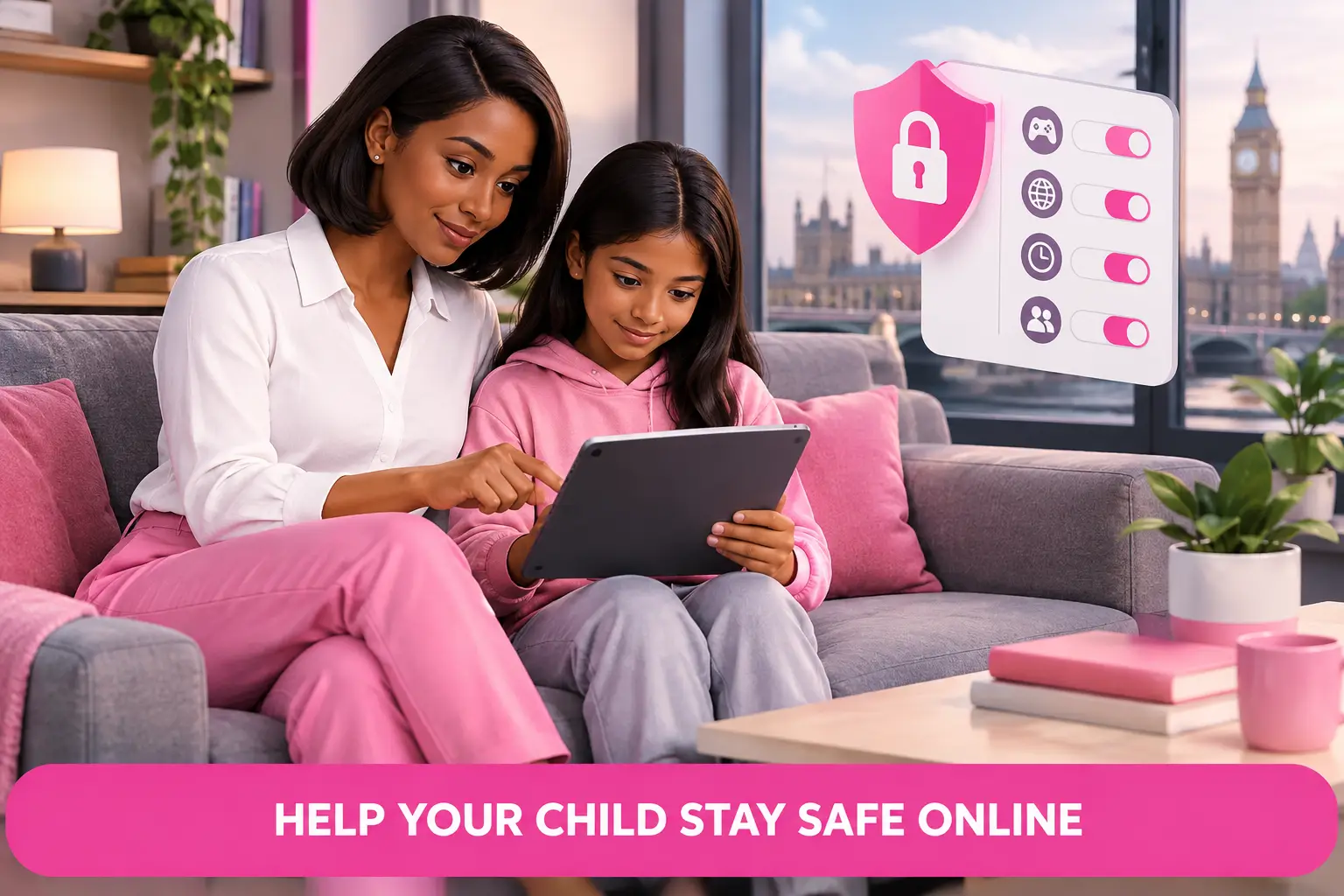
Short answer: To set parental controls before the school term ramps up, agree the household rules first, then apply them across your home Wi-Fi, children’s devices and individual accounts. Test the controls with your child present, keep emergency contact options open, and review the setup after the first week of term.
See my broadband deals. Postcode only. About 30 seconds.
- Put screen-time rules in writing before you turn on any settings.
- Use your router controls for the whole home and device controls for individual needs.
- Change the Wi-Fi administrator password so settings cannot be undone accidentally.
- Test homework access, school websites and video calls before the first school morning.
A family of five may have one child researching a project, another joining an online lesson and a parent working from home. If everyone starts using the connection at the same time, arguments about access can quickly look like a broadband problem. Often, the immediate fix is clearer rules and a better Wi-Fi setup, rather than changing broadband supplier.
By Dr Alex J. Martin-Smith, Head of Editorial
What should you decide before setting parental controls?
Answer: Decide what you are trying to manage, then choose settings that match that purpose.
Start with the practical moments that cause friction: before school, homework time, bedtime and weekends. A rule such as “no internet after 9pm” is easy to understand, but it may be too broad if a child needs access for homework or to contact family. A better agreement can separate schoolwork, general browsing and social activity, while leaving a route for you to make an exception.
Explain that controls are household boundaries, not a secret test. Children are more likely to accept them when they know what is being limited and why. Write down the Wi-Fi times, which devices are covered and who can ask for a change. This also helps other carers follow the same routine.
Which parental controls work on home Wi-Fi?
Answer: Router controls can apply rules to devices connected to your home broadband, but the options differ by router.
Your router is the equipment that shares your broadband connection around the home, usually through Wi-Fi and wired ports. Its settings may let you pause internet access for a named device, create schedules, make a guest network or filter categories of websites. Check the router’s own control panel rather than assuming a feature is available.
Whole-home controls are useful for a shared rule, such as pausing a games console or tablet overnight. They are less precise once a device leaves home, because the rule normally applies only while it is connected to your Wi-Fi. That is why router controls work best alongside settings on the device itself.
Should you use device controls as well as router controls?
Answer: Yes, because device controls can follow the child beyond your home Wi-Fi.
A tablet, laptop or phone may have its own family settings for app approvals, content ratings, web access and time limits. These settings can be more suitable where children have different ages, routines or responsibilities. They can also provide a clearer view of the time spent on that particular device.
There is a trade-off. Setting controls separately on every device takes longer, and a household with older equipment may have inconsistent options. Use the router for your basic shared rules and the device for individual limits. Avoid treating either layer as a guarantee that unsuitable material will never appear.
How do you stop settings being changed?
Answer: Protect the administrator account, recovery details and household Wi-Fi password.
Use a new, memorable but hard-to-guess administrator password for the router. The administrator account controls the network settings, so it should not be the same as the password visitors use to join Wi-Fi. Keep the recovery email address and any security answers current, particularly if another adult normally manages the account.
Do not share the administrator login with children simply because they need the Wi-Fi password. If you have a guest network, give visitors that access instead of your main household network. This can make it easier to keep work devices, school devices and everyday household equipment organised.
Will parental controls affect homework and working from home?
Answer: They can, so test the rules at the times your household actually uses the connection.
Try opening the school platforms and websites your children use while a parent makes a video call or sends work files. If a filter blocks a legitimate learning resource, add an exception only after checking it is appropriate. A blanket block that prevents homework is likely to create more stress than it removes.
If video calls freeze, pages are slow in several rooms or devices drop off Wi-Fi, look at coverage before assuming parental controls are responsible. Moving the router to a more open position can help in some homes. For persistent problems, consider whether your current connection and in-home Wi-Fi arrangement still suit the number of people using them.
| Control option | Best for | What to check |
|---|---|---|
| Router schedule | A shared bedtime or homework routine | Whether rules apply by device and whether you can pause access quickly |
| Website filtering | Reducing access to broad categories of material | Whether legitimate school resources can be allowed where needed |
| Device time limits | Different rules for children of different ages | How settings work away from home Wi-Fi and who approves extra time |
| Guest Wi-Fi | Visitors and temporary devices | That it has a separate password and does not expose your main network settings |
Do you need a new broadband deal before term starts?
Answer: Only if your current service is no longer suitable for how your household uses it.
Parental controls cannot fix weak Wi-Fi coverage, a connection that repeatedly fails or a contract that no longer represents good value. If you are out of contract, moving home or unhappy with the service, check what technologies are available at your address before making a decision. Availability can vary between streets and even between neighbouring properties.
Full fibre, also called FTTP, means fibre runs to the property. Other homes may be served by different fixed-line, cable or wireless technologies. The right choice depends on your address, the number of regular users, home working needs, contract terms, installation requirements and the total cost shown before you agree.
For switching, One Touch Switch means you contact the new provider, which handles the process with the old provider. One Touch Switch went live on 12 September 2024 and is run by TOTSCo. Check any existing contract for early termination charges before you place an order.
What should you do if a child tries to bypass controls?
Answer: Treat it as a conversation first, then close the gap in the setup.
Ask how the setting was bypassed. It may reveal a simple issue, such as an old device still connected, a guest password being shared or a rule that did not apply outside your home. Update the setting without turning the discussion into a technical contest.
Controls work better alongside regular conversations about safe browsing, privacy and asking for help. Make clear that a child can tell you about worrying content without automatically losing all access. That approach is more likely to surface problems early.
What to do next
- Agree the school-week rules with everyone who uses the home connection, including exceptions for homework and emergencies.
- Set router and device controls, then test them on every regular device before term begins.
- Check your postcode to see the broadband options available at your address if your current connection is struggling.
Frequently asked questions
Can I set parental controls without changing broadband provider?
Yes. Most parental control work is done through your existing router, individual devices and the accounts used on those devices. You do not need to switch provider simply to introduce household rules. Consider a broadband comparison only if you also have coverage, reliability, contract or value concerns.
Can parental controls block the internet at bedtime?
They may be able to, depending on your router and device settings. A router schedule can pause access for selected devices on your home Wi-Fi, while device controls may set limits wherever that device is used. Test the timing carefully so essential schoolwork and emergency communication are not blocked.
Will controls work when children are away from home?
Router controls usually do not, because they apply to your home network. Device-level controls may continue to work away from home, depending on the device and account settings. Check this directly on each device rather than relying on one household rule to cover every situation.
What if the Wi-Fi is slow when everyone is online?
First test whether the issue occurs in one room or throughout the property. One-room problems can point to Wi-Fi coverage, while whole-home problems may need a closer look at the connection, router placement and the number of simultaneous users. Compare address-specific broadband options before deciding whether to switch.
See my broadband deals. Postcode only. About 30 seconds.
A calm setup before the first busy school week gives you time to fix mistakes, explain the rules and make the home connection work around family life rather than against it.